![How to Change Folder Icon Color on macOS Tahoe: A Step-by-Step Guide [2026]](/articles/how-to-change-folder-icon-color-on-mac.webp)
Bored of all the blue folder icons in your Finder? We are too. But don't worry, we've got you covered. We put together a comprehensive guide to customizing your folder colors on macOS Tahoe. Whether you want to color-code your project folders or just add some personality to your desktop, changing folder icon colors is a game-changer and it will truly make a difference in your day-to-day.
In this guide, we selected three ways to transform your folder icons on macOS Tahoe, depending on if you already have an icon ready, or if you want to change the color of the default Finder folder icon. Ready to make your Mac desktop beautiful? Let's dive in!
Changing Folder Icon If You Already Have an Icon Ready
If you already have an image file that you want to use as your folder icon, this method is for you. It's quick and straightforward, and it just requires a few clicks to change the icon. Here's how to do it:
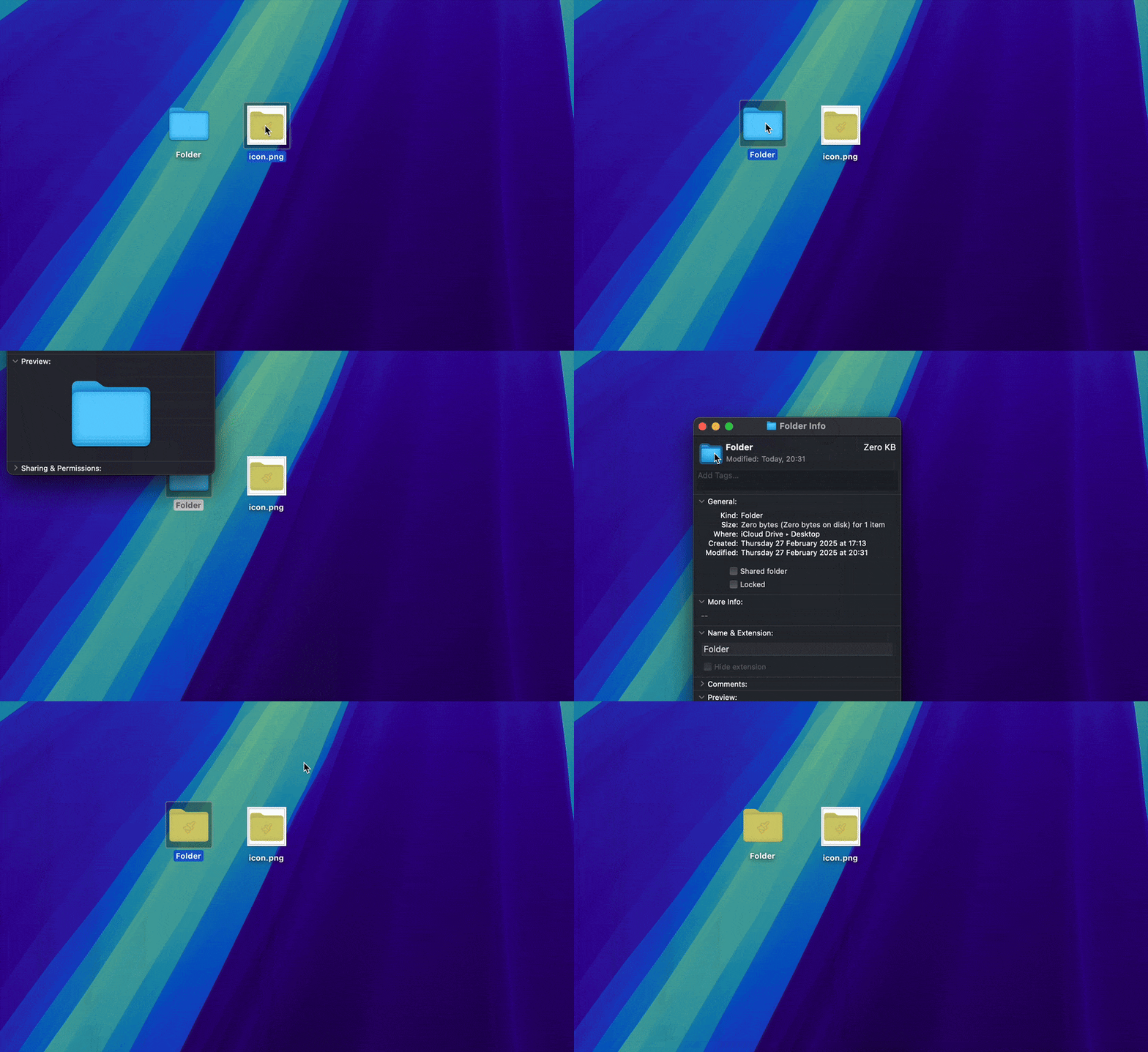
Select the image you want to use as your folder icon.
Press Command + C to copy it.
Right-click on the folder you want to customize and select "Get Info" from the menu.
In the window that appears, find the small folder icon thumbnail in the top-left corner, and click once on it. You should see it highlighted.
Press Command + V to paste the image into your folder icon.
Note: Not all image formats are supported for folder icons on macOS. For best results, use PNG or ICNS files. JPEG images may work but could result in lower quality icons. Some other formats like WebP or SVG files aren't natively supported and may not work at all when trying to set them as folder icons.
Best Approach: Drag and Drop Your Icon Into Tintd
If, like us, you want to be able to easily make beautiful colored icons for your folders, then this section is for you. Make beautiful icons by following these simple steps:
Download Tintd, our folder colorization app for Mac.
Drag and drop the folder(s) you want to modify into the app.
Choose the color you want in our palettes or make your own easily.
Choose from our library of 11,000+ icons and emojis to put on top of your folder icon.
Press Colorize. Done!
We may be biased, but we really think this is the best way to change your folder icon on Mac, as you can make beautiful icons in just a few seconds.
Automatic Folder Colors with Tintd
Tintd also lets you set up color rules that run in the background. For example, you can tell it to automatically color any folder named "Archive" gray, or any folder inside your "Work" directory blue. Once the rule is in place, Tintd handles it automatically whenever a matching folder appears. It's a great way to keep your Finder consistent without any ongoing effort.
If you don't want to download an app though, we understand, and we have another method for you below.
Manual Method: Changing Folder Icon Color Using Preview
If you prefer to do it the old-fashioned way, you can change your folder icon color manually using the Mac's native Preview app. Follow these steps:
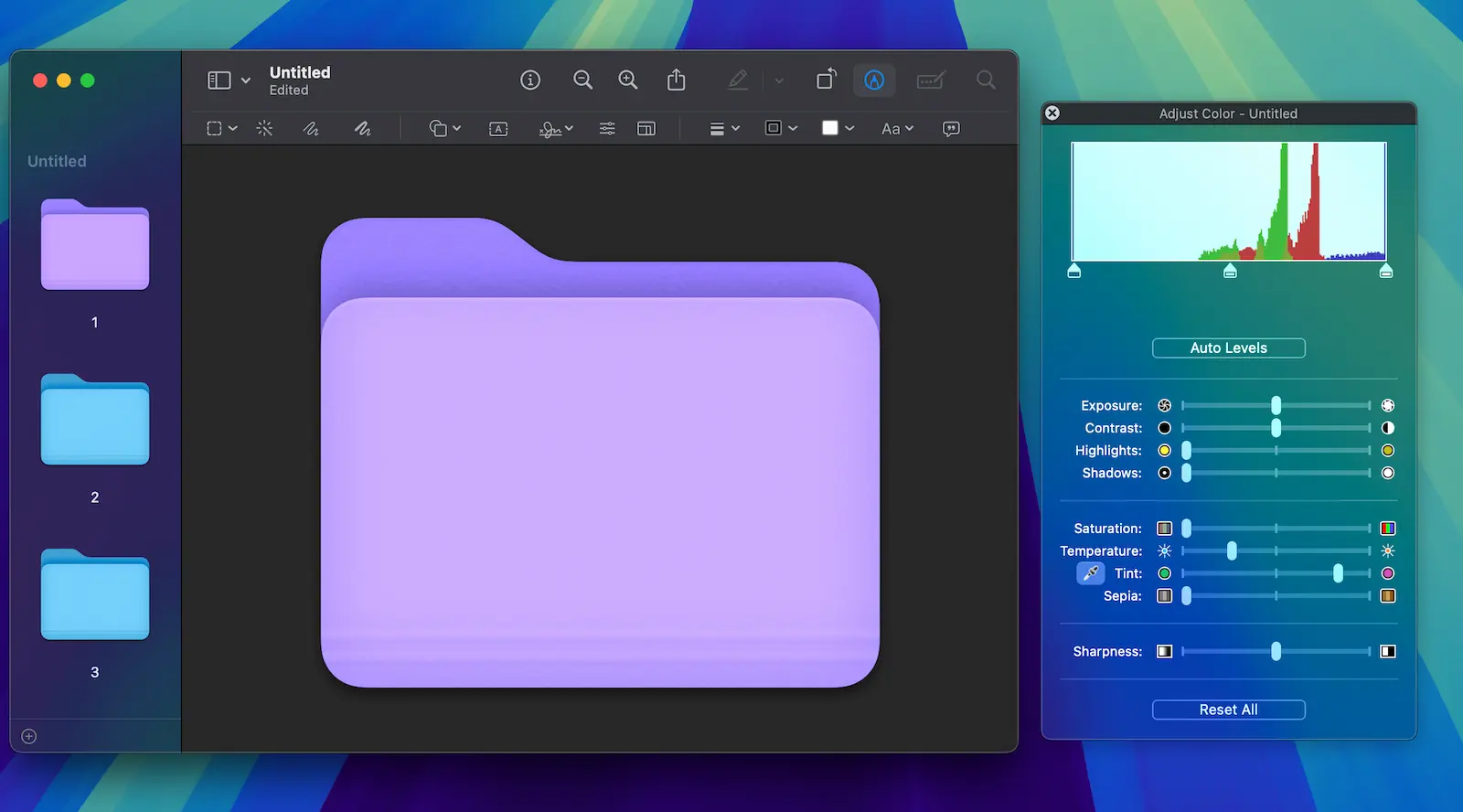
Right-click on the folder you want to customize and select Get Info.
In the Info window, click on the small folder icon thumbnail. Then, press Command + C to copy it.
Launch the Preview app, and from the menu, choose File > New from Clipboard. This will open your folder icon as an image.
Go to Tools > Adjust Color. Here, you can modify the hue, saturation, and brightness until you achieve the perfect shade for your folder.
Once satisfied with your color adjustment, press Command + C to copy the updated image.
Return to the folder's Info window, click on the original icon thumbnail to select it, and press Command + V to paste your new icon.
Close the Info window, and enjoy your new folder color!
This method is a bit tedious, but it gives you complete control over the color adjustments. Unfortunately though, this doesn't let you add an icon on top of your folder.
Reset The Folder Icon To The Default Finder Icon
If you want to revert back to the default blue folder icon, here's how to do it:
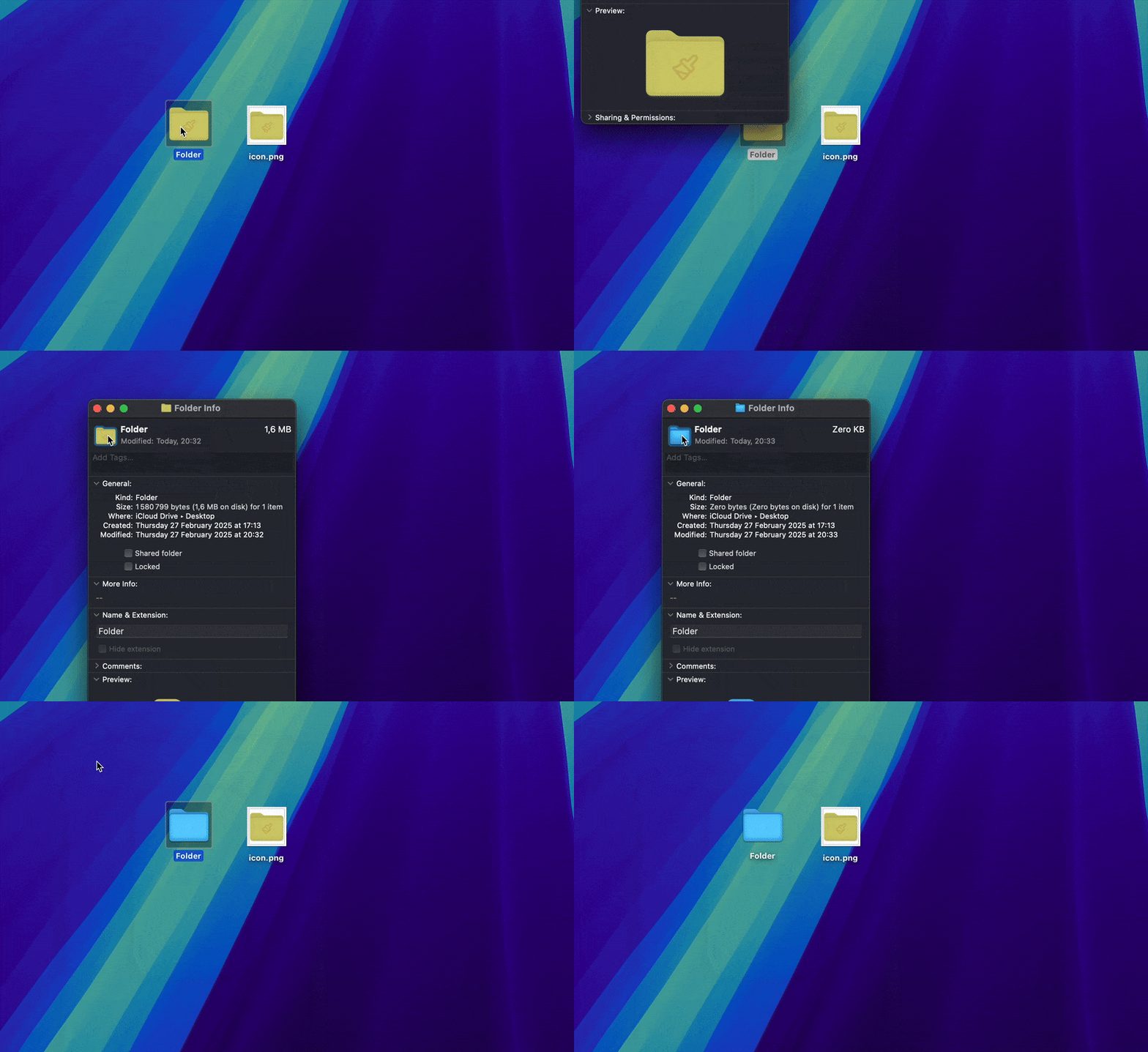
Right-click on the folder with the custom icon and select "Get Info".
Click once on the small folder icon in the top-left corner of the Info window to select it.
Press the Delete key on your keyboard.
Close the Info window, and your folder will now display the default Finder icon.
Note: This process cannot be undone, so make sure you want to remove the custom icon before proceeding. If you want to restore a custom icon later, you'll need to go through the customization process again.
Conclusion
Customizing folder icons on your Mac is a great way to organize your files visually and add a personal touch to your Finder windows. Whether you choose to use Tintd for quick and beautiful results, set up automatic color rules for your entire workflow, or prefer the manual method with Preview, you now have the tools to make your Mac's folders stand out.
Happy customizing!
Frequently Asked Questions (FAQs)
How to change multiple folder icons at once on macOS Tahoe?
It's possible to change multiple folder icons at once using Tintd. With the manual approach described above, unfortunately, it's not possible to change multiple icons at once.
Does changing the folder color affect its contents?
No, modifying the folder icon is purely cosmetic and doesn't affect the files or subfolders inside in any way.
Can I restore the original folder color?
Yes, you can always revert to the default Finder folder icon, using the method outlined above.
Does this work on all macOS versions?
This method works on macOS Tahoe and on most recent versions. Some older versions might have slightly different steps in the Preview app.
Will my custom folder icons sync across devices?
Custom folder icons are stored locally on your Mac. If you use iCloud Drive or another cloud storage service, the custom icons won't automatically sync to other devices. You'll need to set up the custom icons separately on each Mac you use.
Can I color-code folders automatically based on their names?
Yes. Tintd's Smart Color feature reads the name of a folder and the colors you've already given its neighboring folders, then suggests a matching color so your whole folder system stays visually consistent. Instead of picking a hue by hand for every folder, you can let Tintd assign one that fits, which makes color-coding a large set of folders much faster.
How do I make new folders get a color automatically when I create them?
Turn on Tintd's Folder Watcher. Once enabled for a location, it detects whenever you create a new folder there and automatically colorizes it using the Smart Color system, so freshly made folders are colored the moment they appear in Finder. This feature needs Full Disk Access, which macOS will prompt you to grant the first time you enable it.
Can Tintd suggest folder colors that match my existing color scheme?
It can. Tintd looks at the colors of the surrounding folders and fills in the gaps on the color wheel, choosing a hue that's distinct from its neighbors but still part of the same palette. This keeps related folders easy to tell apart while making the overall set look intentional rather than random.
What's a good color-coding system for organizing folders on Mac?
A simple, consistent scheme works best. Many people color folders by category (for example, blue for work, green for finances, red for urgent), by project, or by status such as active versus archived. The key is to keep the number of colors small and use them the same way everywhere. Tintd makes this practical by letting you apply a color to many folders at once and by keeping new folders on-scheme automatically.
Are the color suggestions processed privately on my Mac?
Yes. All of Tintd's color and icon suggestions are computed locally on your Mac. Your folder names never leave your device, and no AI service or external server is contacted to generate a suggestion.